Digital Caliper Not Working? Common Problems and Fixes
Most digital caliper problems come from a weak or poorly seated battery, a dirty scale or jaws, or moisture on the electronics. Start by replacing the battery and cleaning the jaws and slide, then close the jaws and press ZERO. If the display still blinks, jumps or stays blank, work through the symptom table below before you give up on the tool.
 Kynup 170-2Best overall
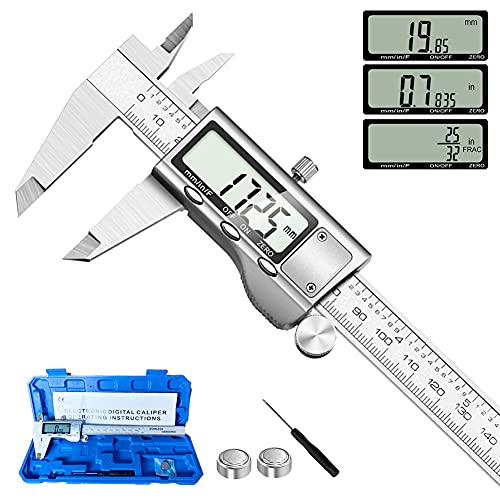 Jiavarry 20-FFour measuring modes
 LOUISWARE Silver Digital CaliperShortest auto-off timer
Start with the battery
A weak battery is behind most blinking, flashing and erratic displays. Digital calipers need steady voltage to read the scale, and a tired cell often gives just enough power to light the screen but not enough to measure reliably. The result can be flickering digits, numbers that jump, or a display that goes blank when you slide the jaws.
Remove the old cell and look at both the battery and the contacts. Wipe them with a dry cloth or a cotton swab. Make sure the cell sits flat and the cover presses it firmly into place. Use the same cell type printed on the old battery or listed in the manual. A brand-new cell can still be a dud, so try a second one if the first does not fix it.
It helps to keep spares around. Some kits include them: the Kynup 170-2 lists three button cells in the package, two of them replacements, along with a mini screwdriver for the battery cover. The HARDELL 6inch also lists a spare battery and a mini screwdriver.
Match the symptom to the likely cause
Different symptoms point to different problems. Use this table to narrow things down before you take anything apart.
| Symptom | Likely cause | What to try |
|---|---|---|
| Display blinking or flashing | Low battery or poor battery contact | Replace the cell, clean the contacts, reseat the cover |
| Digits jump or spaz out while sliding | Weak battery, dirty scale or moisture | New battery, wipe the slide, dry the tool fully |
| Reading stuck and not changing | Frozen electronics or a dead cell | Remove the battery for a minute, reinstall, press ZERO |
| Will not zero | Jaws not fully closed or dirty, or an error state | Clean jaws, close them gently, press and hold ZERO |
| Blank screen | Dead battery, auto-off, or no contact | Press a button to wake it, then replace the battery |
| Wrong units or odd format | Unit mode changed by accident | Press the unit button to cycle modes |
| Reads off after zeroing | Debris on jaws or a bent jaw | Clean, recheck against a known size |
Fix a blinking or jumping display
If new batteries do not stop the flickering, look at the scale. Inside the slide is a fine measuring strip that the electronics read as the jaw moves. Oil, dust, coolant or metal shavings on that strip can make the numbers skip.
Wipe the beam and the slide with a clean, lint-free cloth. Use a little isopropyl alcohol on the cloth if there is sticky residue, and let everything dry fully. Do not spray liquid into the electronics or soak the tool.
- Slide the jaws open and closed several times to see whether the jump happens at one spot.
- Clean along the whole beam, not just the jaws.
- Keep the tool away from phones, motors and other sources of static or interference while you check it.
- If the problem only shows up in humid or wet conditions, dry the tool and store it with its case open for a while.
Fix a caliper that will not zero
Zeroing sets the display to 0.000 at the current jaw position. If it refuses, the most common reason is something simple: the jaws are not fully closed. A grain of dust or a thin film of oil between the measuring faces can keep them apart and give an offset after zeroing.
Close the jaws on a clean surface, then press ZERO. The Kynup listing gives the same advice, to keep the jaws clean and press ZERO before measuring to prevent reading drift. The HARDELL listing also suggests closing and re-zeroing before each use.
If the display shows a strange value that will not clear, remove the battery for a minute and reinstall it. That resets the electronics on many models. After a reset, close the jaws, press ZERO and check the reading against a known size, such as a gauge block or a drill bit of known diameter.
Some calipers keep their zero point after power-off. The iGaging 100-700-06 lists absolute origin, which retains the zero reference even after the caliper is turned off. If you use a model without that feature, expect to zero it again after each wake-up.
Check auto-off, moisture and damage
A caliper that seems dead may have simply shut itself off. Auto-off timers vary. The Kynup, Jiavarry and HARDELL list 5 minutes, while the LOUISWARE lists 4 minutes. Press the power or ZERO button to wake it before you assume the battery is gone.
Moisture is another cause of strange behavior. Coolant, sweat and rain can get into the display area or the battery compartment. Splash resistance is not the same as waterproof. The iGaging 100-700-06 lists an IP54 or higher rating, which covers dust and splashes, and the Kynup 170-2 does as well. The Jiavarry and LOUISWARE list only splash resistance, and the HARDELL lists no rating. In every case, avoid submerging the tool.
Physical damage matters too. A dropped caliper can have bent jaws or a cracked display. Close the jaws and hold them up to the light. If you see a gap, or if the slide feels rough even after cleaning, the tool may be out of true. A stainless steel body, as listed for these models, resists rust and wear, but it will not fix a bent jaw.
Safety note: do not open the housing while the caliper is wet, and keep small button cells away from children and pets. Swallowed batteries are dangerous. Wear safety glasses when you measure parts that are being cut, ground or turned, since chips can fly.
When to repair and when to replace
You can try a basic repair if the tool is out of warranty and the cheap fixes have failed. Remove the battery, take out the small screws on the back, and look for dirt, corrosion or a loose ribbon connection. Reassemble everything carefully and test it. Be gentle, because the scale and circuit board are delicate and easy to damage.
Replace the caliper if the jaws are bent, the scale is scratched, the display is cracked, or the readings stay inconsistent after a fresh battery and a careful cleaning. Accuracy is what you rely on, and a tool that cannot hold it is not worth keeping. If you are shopping, our best digital caliper page lists accuracy, body material, protection rating and auto-off side by side. Every model there lists 0.001 in accuracy, so the differences come down to build, extras and features.
If your work is messy or wet, our digital caliper comparison can help you focus on the models with a listed IP54 or higher rating and a hard case. Those two points cut down on the dirt and moisture problems described above.
Quick prevention habits
A few habits prevent most future trouble. Store the caliper in its case with the jaws slightly open, wipe it after each job, and remove the battery if you will not use it for a long time. Keep it away from heat and damp areas.
Check it against a known size every so often. If the reading is off, clean and re-zero first, then decide whether the tool needs replacing.
- Wipe the jaws before every zeroing.
- Replace the battery at the first sign of flicker.
- Keep spare cells with the tool.
- Store it dry and in its case.
Frequently asked questions
Does a flashing display always mean the battery is dead?
Not always, but it is the most likely cause. Poor contact, a loose cover or a damp compartment can cause the same flicker, so clean the contacts and reseat the cell too.
Can I fix a frozen display without tools?
Often yes. Take the battery out for about a minute, put it back in, close the jaws and press ZERO. This resets many calipers.
Why does my caliper read differently after I zero it?
Dirt or oil on the jaw faces can leave a small gap, so the zero point is wrong. Clean the faces, close the jaws gently and zero again.
Is it safe to clean a caliper with alcohol?
A small amount of isopropyl alcohol on a cloth is fine for the beam and jaws. Keep liquid out of the display and battery area, and let the tool dry before use.